Call Monitoring Module User Manual
Overview
The Call Monitoring Module enables users to monitor live calls, view missed calls, and manage call queues efficiently all while maintaining strict project-based access control.
This ensures that users can only access call data related to their assigned projects, maintaining privacy and compliance. Super Admins, however, have unrestricted system-wide access across all projects, calls, and queues.
1. Active Call Monitoring
Super Admins have full visibility and administrative control over all call monitoring features. The Active Calls section provides real-time visibility into ongoing customer-agent interactions.
1.1 Super Admin View
-
Log in to the admin dashboard with your Super Admin credentials.
-
Super Admins have full visibility and administrative control over all call monitoring features.
-
From the main navigation menu, locate and click on the section labeled Call Monitoring.Inside the call monitoring you can see active Call, In Queue, In Conversation and Missed Call.
-
Locate the Specific Call from Active Calls menu:
-
You will see a list or a grid of all calls that are currently active.
-
The total number of active calls is the combination of calls in queue and calls in conversation. First, a call is in the queue. After an agent picks it up, the call becomes active and is in conversation, and we can then see the data correctly.
-
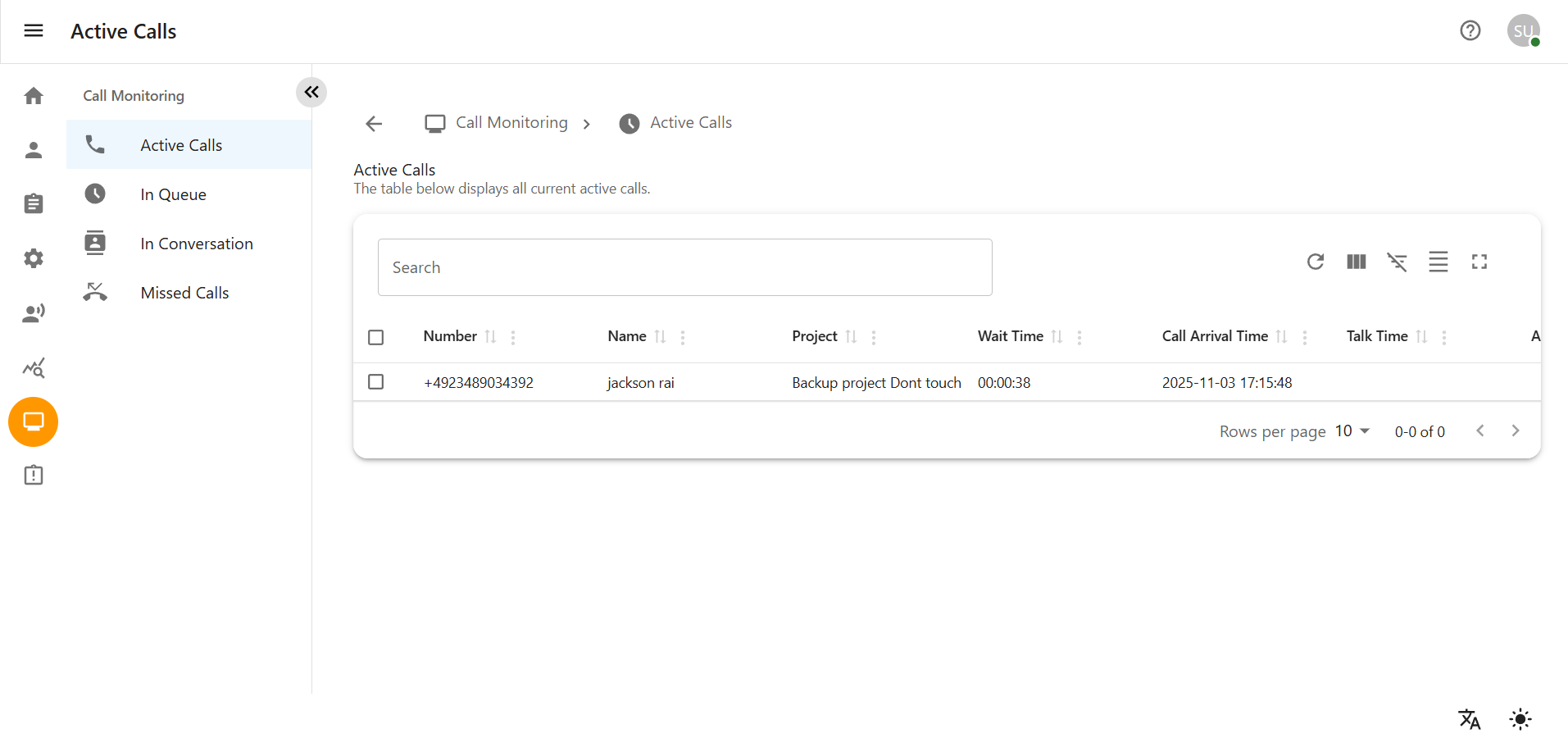
Once you have located the active call, you will see all its relevant information displayed in a single row or a dedicated information panel. The data shown will typically include call details that are available only during the active call duration.
Phone Number: The caller’s telephone number.
Caller Name: The name associated with the caller’s number (if available).
Project: The project the call is associated with.
Wait Time: The duration the caller waited in the queue before being answered.
Call Arrival Time: The exact date and time the call entered the system.
Talk time: The duration of the current conversation.This is active when call is in conversation.
Agent: The name of the agent who is currently handling the call.
1.2 Clerk User View
-
Log in to the system with your assigned user credentials.
-
Navigate to Call Monitoring:
-
From the main navigation menu, locate and click on the section Active Calls.
-
View Assigned Project Call Statuses:
-
Inside the Call Monitoring section, the system automatically filters the view.
-
You will only see call types relevant to your projects: Active Call, In Queue, In Conversation, and Missed Call.
-
Locate Your Project’s Call:
-
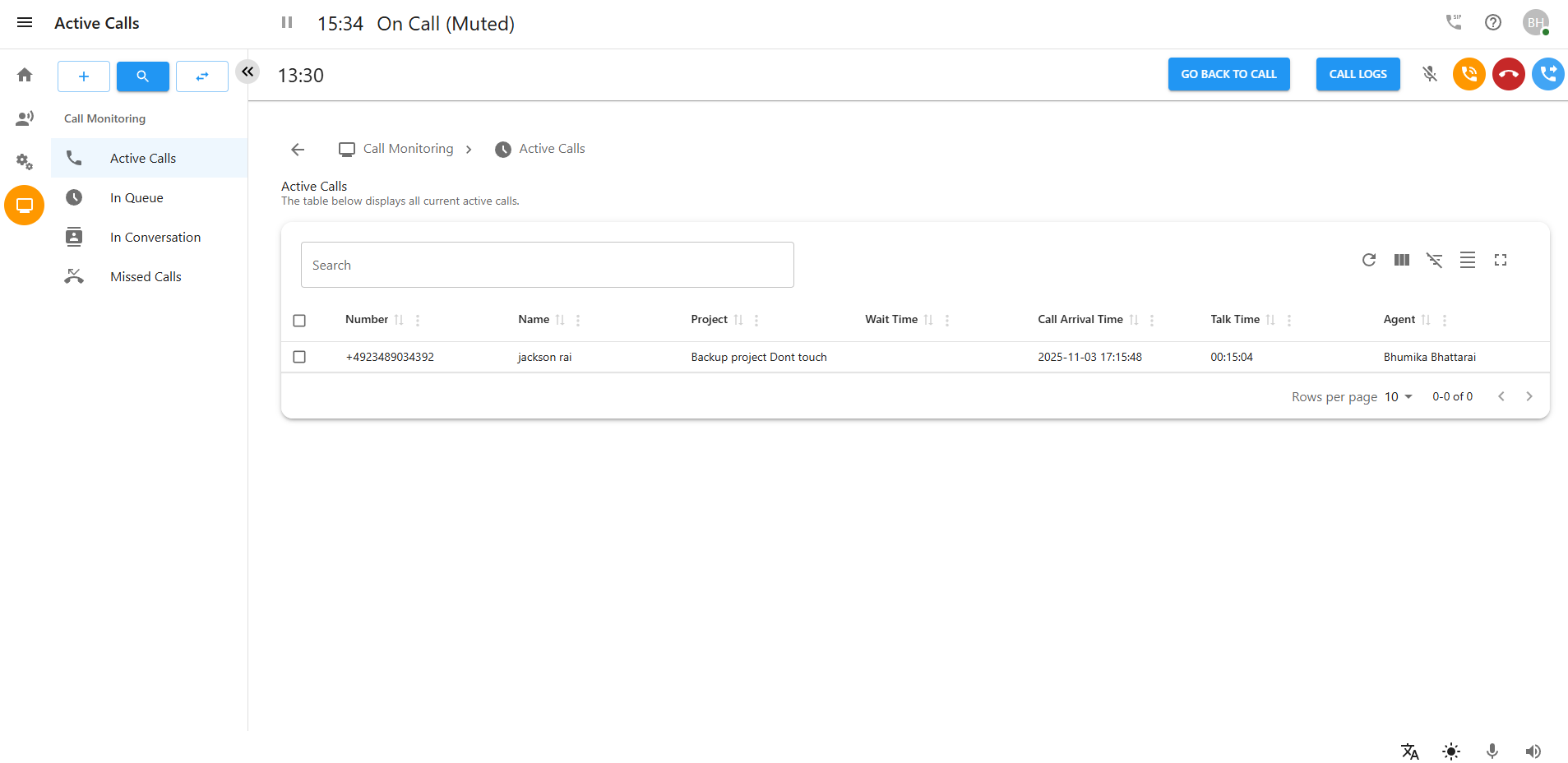
Once you have located the active call, you will see all its relevant information displayed in a single row or a dedicated information panel. The data shown will typically include call details that are available only during the active call duration.
Phone Number: The caller’s telephone number.
Caller Name: The name associated with the caller’s number (if available).
Project: The cproject the call is associated with.
Wait Time: The duration the caller waited in the queue before being answered.
Call Arrival Time: The exact date and time the call entered the system.
Talk time: The duration of the current conversation.This is active when call is in conversation.
Agent: The name of the agent who is currently handling the call.
2. Queue Monitoring
The Queue Monitoring feature displays calls waiting in queues for available agents.
2.1 Super Admin Queue Access
-
Navigate to In Queue section from the main Call Monitoring menu in the dashboard
-
From the main navigation menu, click on the Call Monitoring.
-
Inside the Call Monitoring interface, locate and select the tab or panel labeled In Queue.
-
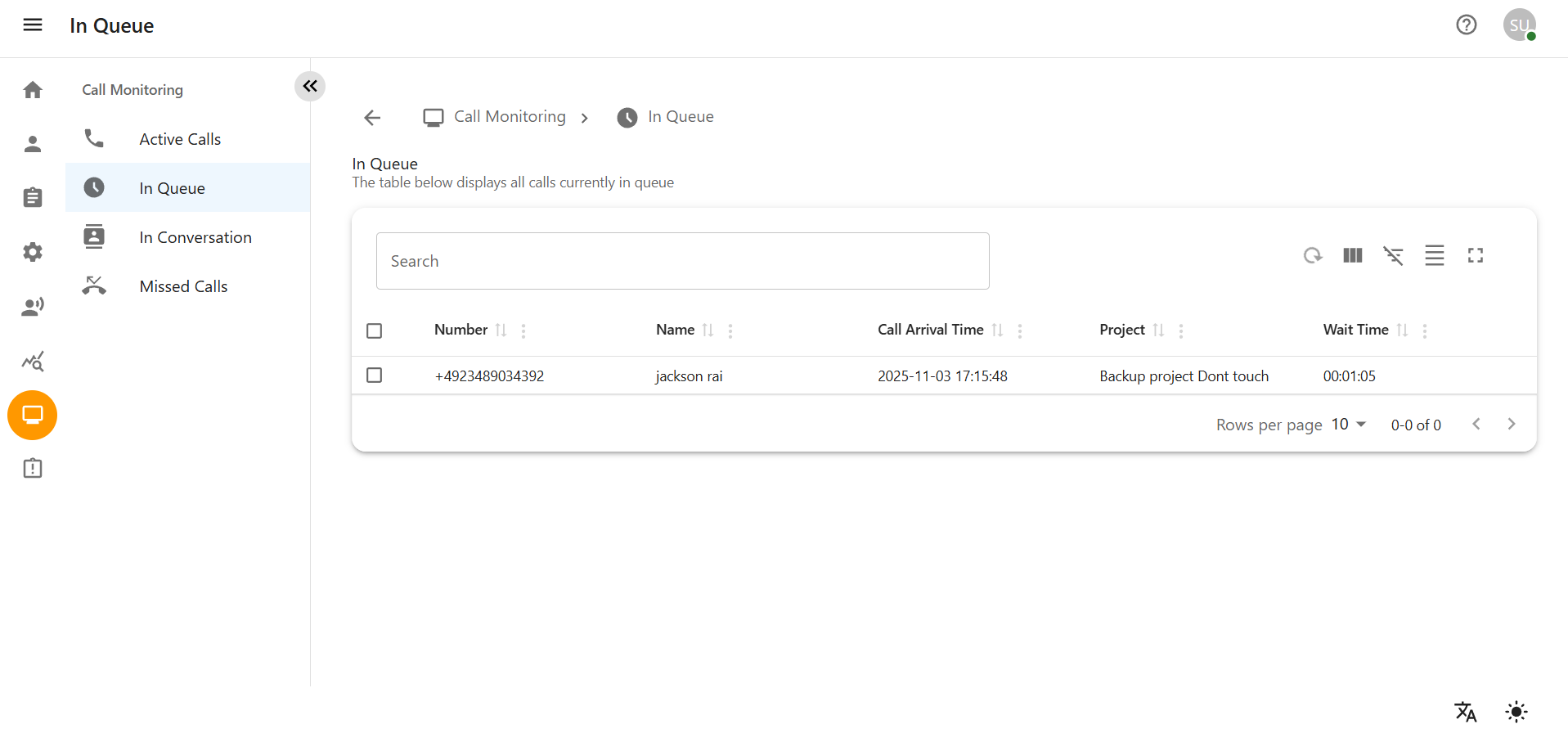
The system will display a consolidated list or grid of all calls currently waiting in every project queue.You can pick calls only from visible queues.
-
Scan the list to monitor all waiting calls. The information displayed for each queued call will typically include:
Phone Number: The telephone number of the waiting caller.
Caller Name: The name associated with the caller’s number
Project: The specific project or campaign the call is associated with.
Wait Time: The total duration the caller has been waiting in the queue
Call Arrival Time: The exact date and time the call entered the queue.
2.2 Clerk User Queue Access
-
Log in to the admin dashboard using your credentials.
-
Fom the main navigation menu, click on the Call Monitoring.
-
Can only see In Queues related to assigned projects
-
Restricted from viewing or interacting with queues from unassigned projects
-
Inside the Call Monitoring interface, locate and select the tab or panel labeled In Queue.
-
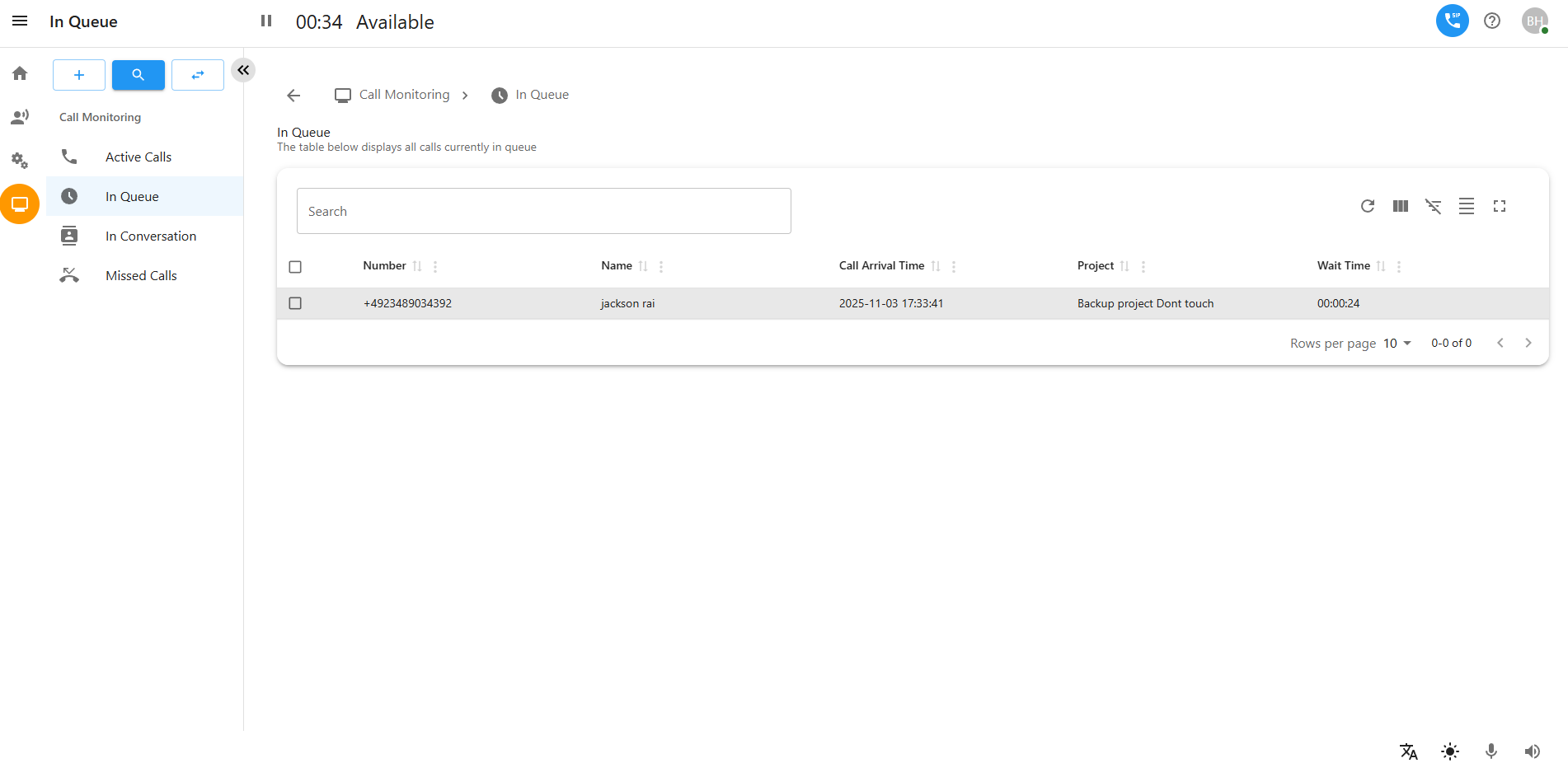
Scan the list to monitor all waiting calls. The information displayed for each queued call will typically include:
Phone Number: The telephone number of the waiting caller.
Caller Name: The name associated with the caller’s number
Project: The specific project or campaign the call is associated with.
Wait Time: The total duration the caller has been waiting in the queue
Call Arrival Time: The exact date and time the call entered the queue.
3. In-Conversation Monitoring
-
The In-Conversation Monitoring section allows users to observe live customer-agent conversations.
3.1 Super Admin Conversation Access
-
Log in to the system with your user credentials
-
From the main navigation menu, click on Call Monitoring
-
Navigate to Conversations Section
-
Select the Conversations
-
The system show conversations from all projects
-
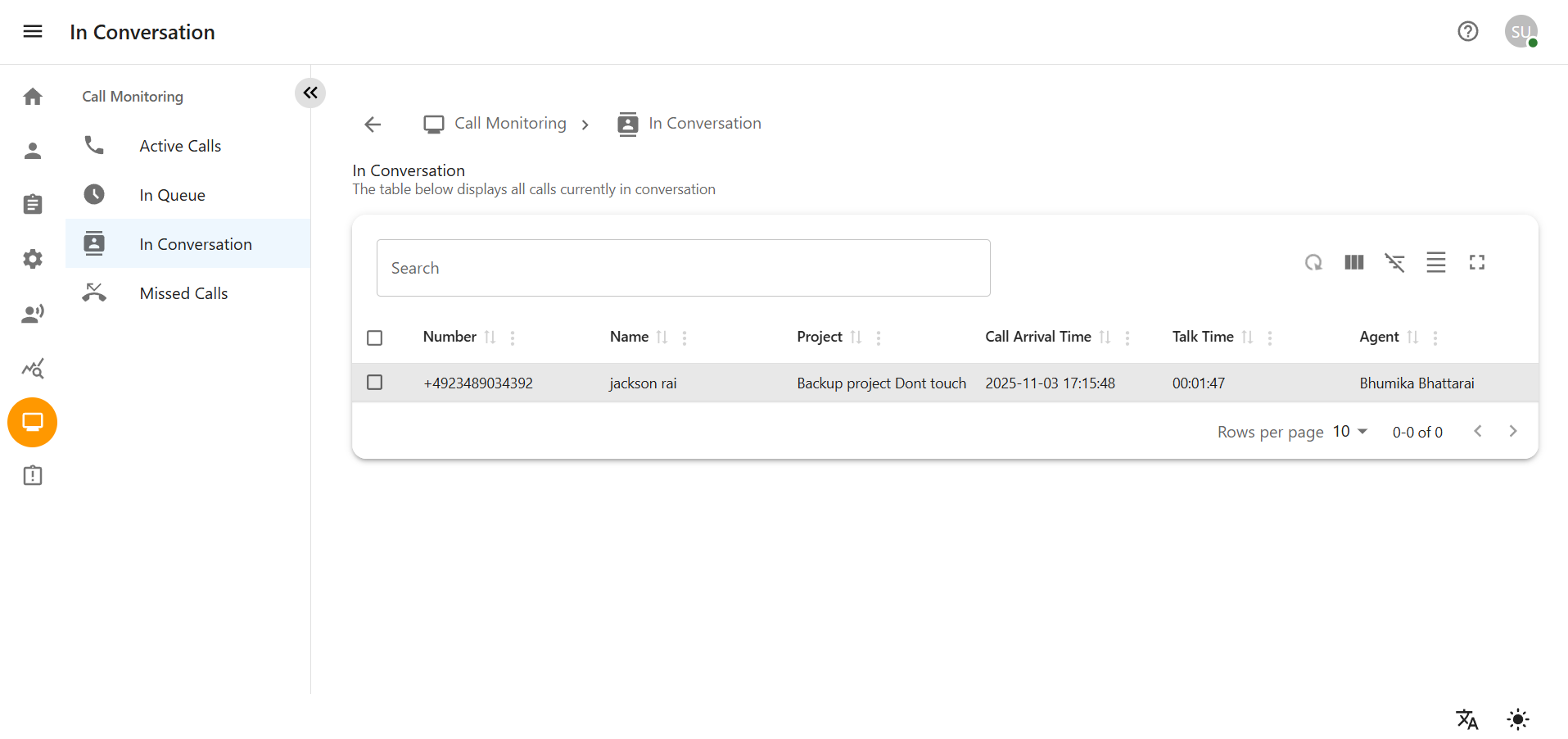
See a list of ongoing conversations within all projects displaying:
Caller Number: Customer’s telephone number
Caller Name: Name associated with caller’s number
Project Name: Your assigned project name
Call Arrival Time: When the call entered the system
Talk Time: Duration of the current conversation.This is active when call is in conversation.
Agent handling the conversation
3.2 Clerk User Conversation Access
-
Enter your user credentials to access the system. Navigate to main menu Call Monitoring section.
-
Access Conversation Monitoring inside:
-
From the main menu, click on In Conversation Monitoring
-
The system automatically filters to show only your assigned projects
-
View Your Project Conversations:
-
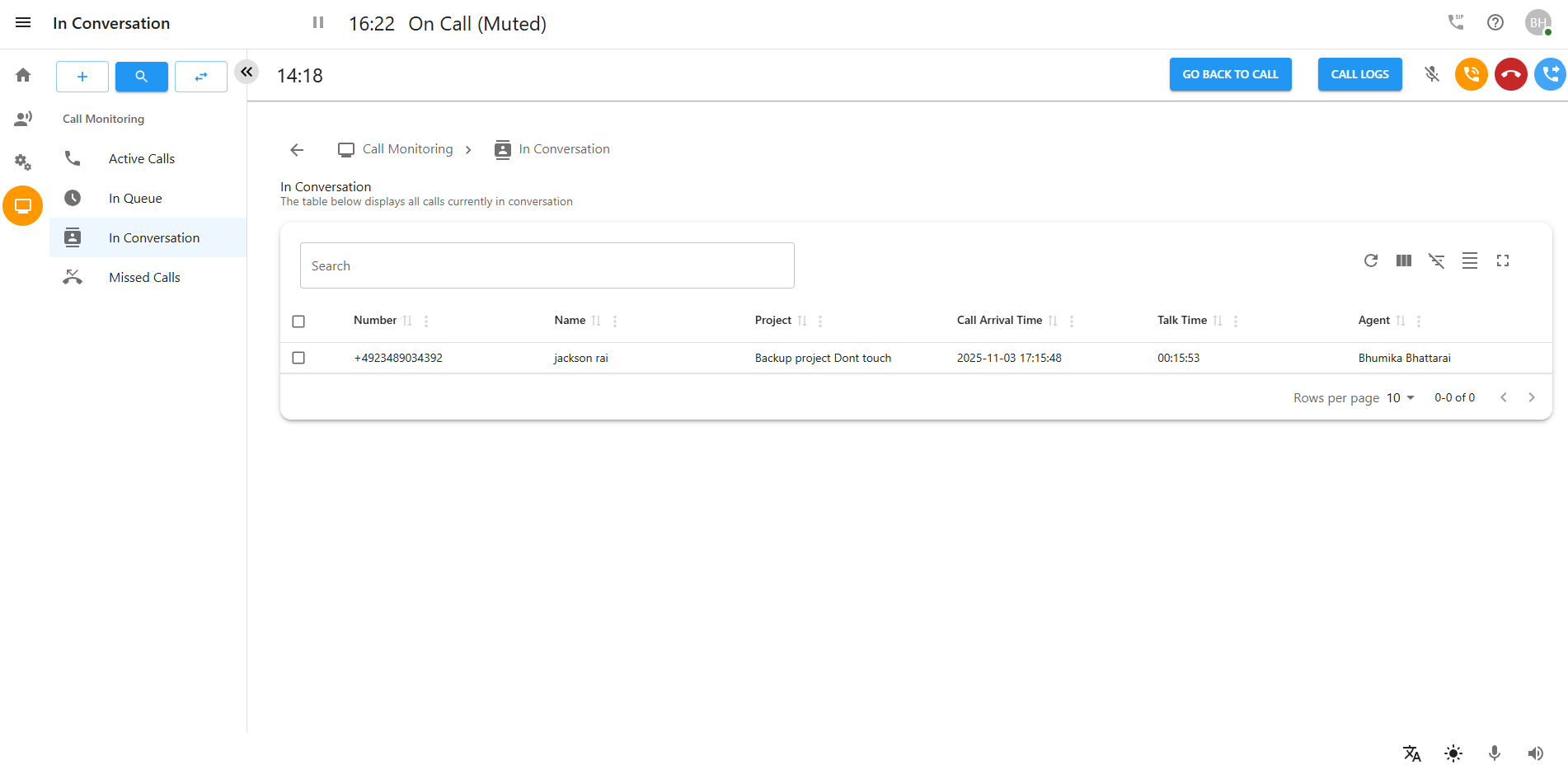
See only conversations from your authorized projects displaying:
Caller Number (if permitted by project settings)
Caller Name (if available and permitted)
Project Name (your assigned projects only)
Call Arrival Time: When the call entered the system
Talk Time: Duration of the current conversation
Agent: Agent handling the conversation within your project
4. Missed Calls Access
The Missed Calls section allows users to review calls that were not answered by agents.
4.1 Super Admin Missed Calls
-
Log in to the admin dashboard with your Super Admin credentials
-
Navigate to Reports > Missed Calls or Call Analytics
-
View Complete Missed Calls Data:
-
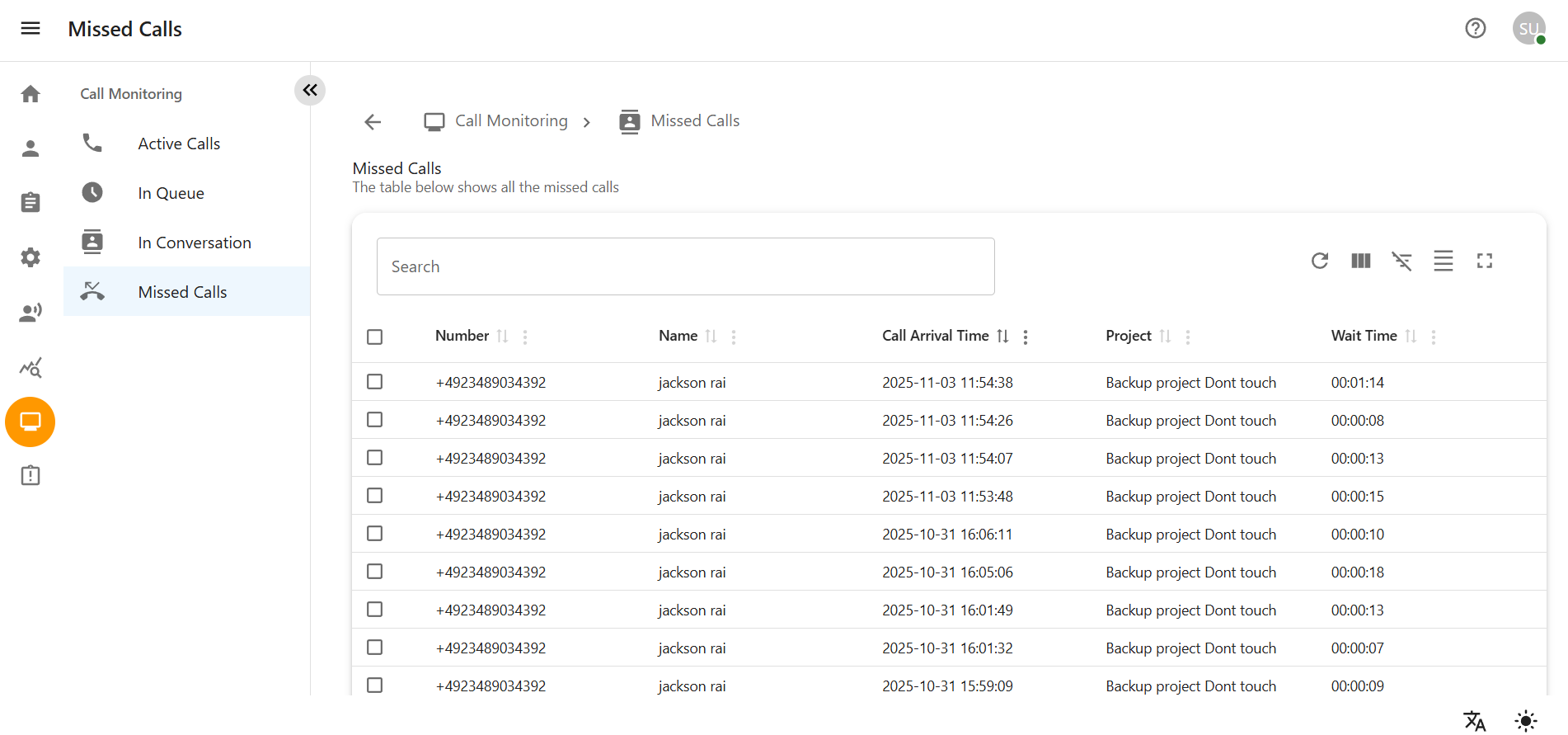
The system displays all missed calls from every project
-
For each missed call, view complete information including:
Caller Number: The customer’s complete telephone number
Caller Name: Full name associated with the caller
Project Name: Specific project the call was associated with
Call Arrival Time: Exact date and time the call entered the system
Wait Time: Total duration caller waited before disconnecting
4.2 Clerk User Missed Calls
-
Log in to the system with your user credentials
-
Navigate to Reports > Missed Calls or My Missed Calls
-
View Project-Specific Missed Calls:
-
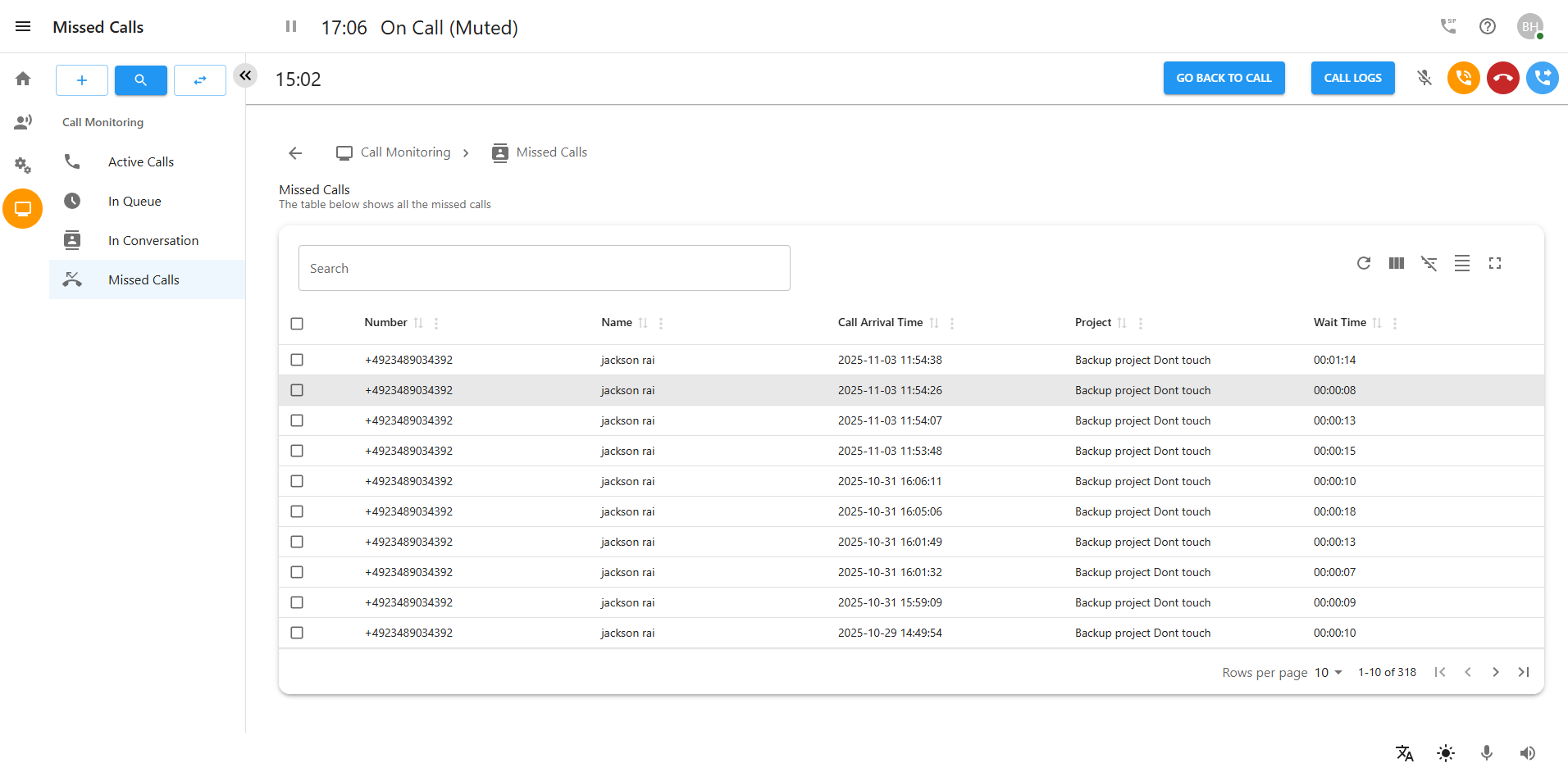
The system automatically displays only missed calls from your assigned projects
-
No manual filtering required - restricted view applied by default
-
For each missed call within your projects, view permitted information:
Caller Number: Customer’s telephone number
Caller Name: Name associated with the caller
Project Name: Your assigned project name only
Call Arrival Time: Date and time the call entered the system
Wait Time: Duration caller waited before disconnecting
5. Conclusion
The Call Monitoring Module provides a detailed, real-time ledger of all call activity. It captures essential details like caller ID, time, duration, and project tags for every interaction—whether ongoing, queued, or missed—giving teams immediate, actionable insight into their communications.